git status
Shows which files have changed, which changes are staged for the next commit and which files Git doesn't track yet.
Syntax
git status [-s] [-b] [PATH...]
Options
| Option | Description |
|---|---|
-s, --short |
Short output, one line per file |
-b, --branch |
Also show the branch in the short output |
--ignored |
Also show files ignored by .gitignore |
-uno |
Don't list untracked files |
Examples
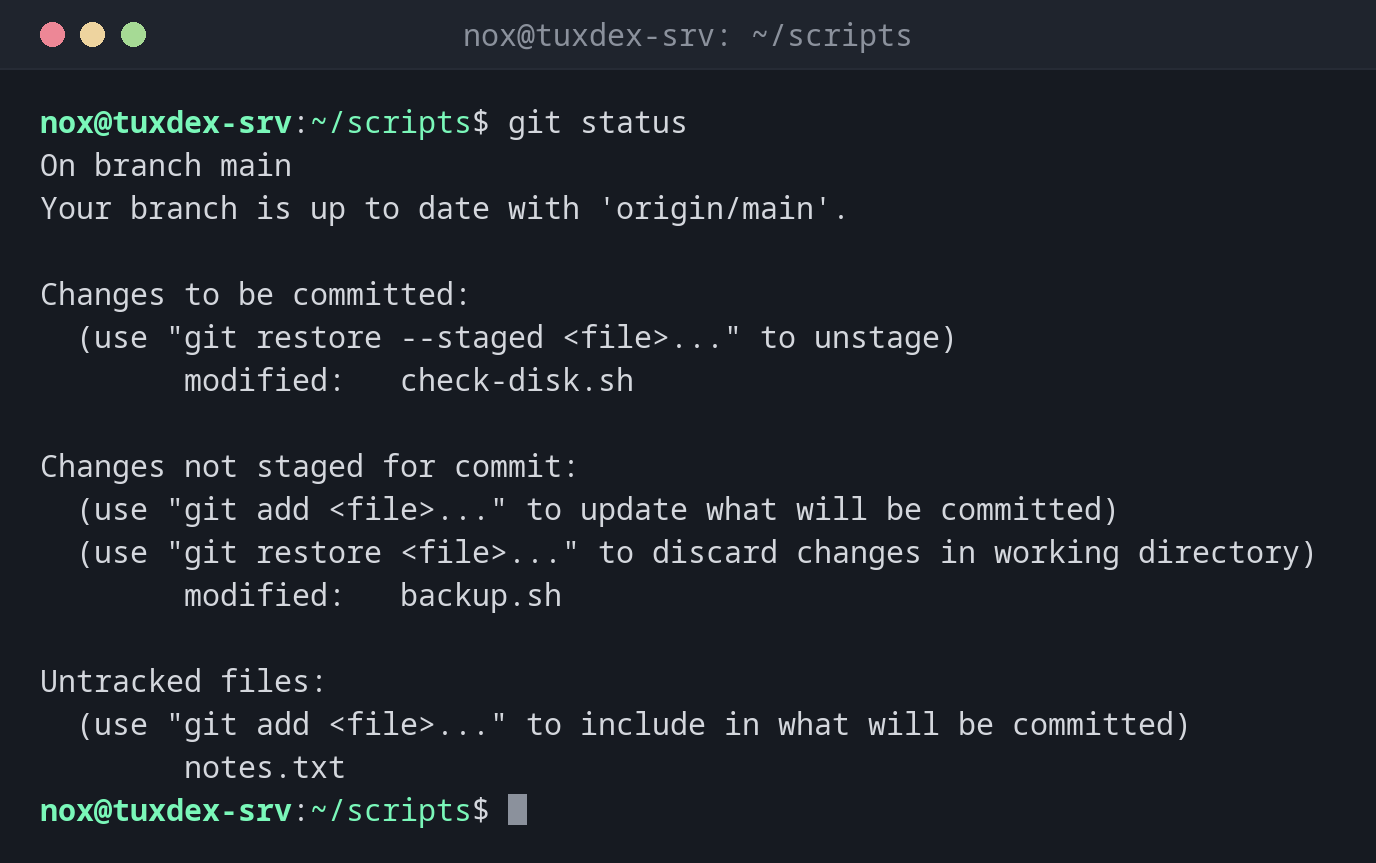
See the state of the repository:
git status
On branch main
Your branch is up to date with 'origin/main'.

Changes to be committed:
  (use "git restore --staged <file>..." to unstage)
        modified:   check-disk.sh

Changes not staged for commit:
  (use "git add <file>..." to update what will be committed)
  (use "git restore <file>..." to discard changes in working directory)
        modified:   backup.sh

Untracked files:
  (use "git add <file>..." to include in what will be committed)
        notes.txt
The same in short form:
git status -sb
## main...origin/main
M  check-disk.sh
 M backup.sh
?? notes.txt
The left column is the staging area, the right one the working directory: M modified, A added, D deleted, ?? not tracked.
Everything committed, but not pushed yet:
git status
On branch main
Your branch is ahead of 'origin/main' by 1 commit.
  (use "git push" to publish your local commits)

nothing to commit, working tree clean
Also show ignored files:
git status -s --ignored
 M backup.sh
?? notes.txt
!! backup.log
When do I need it?
- Before every commit, to see what will go into it
- On a server, to find out whether someone changed a versioned configuration by hand
- After
git pullorgit merge, to check whether everything went through
Use it all the time
git status only reads and changes nothing. Its hints also tell you which command
undoes what, for example git restore --staged.
Related commands
git add · git diff · git restore · git commit