dpkg
The low-level package tool of Debian and Ubuntu: lists installed packages, shows which files belong to which package, and installs single
.debfiles.
Syntax
dpkg [OPTION]... ACTION [PACKAGE | FILE]...
Options
| Option | Description |
|---|---|
-l [PATTERN] |
List installed packages with their state |
-L PACKAGE |
List the files of an installed package |
-S PATH |
Find the package that a file belongs to |
-s PACKAGE |
Show the state and details of a package |
-i FILE.deb |
Install a package file |
-I FILE.deb |
Show the details of a package file without installing it |
--configure -a |
Finish configuring packages after an interrupted installation |
Examples
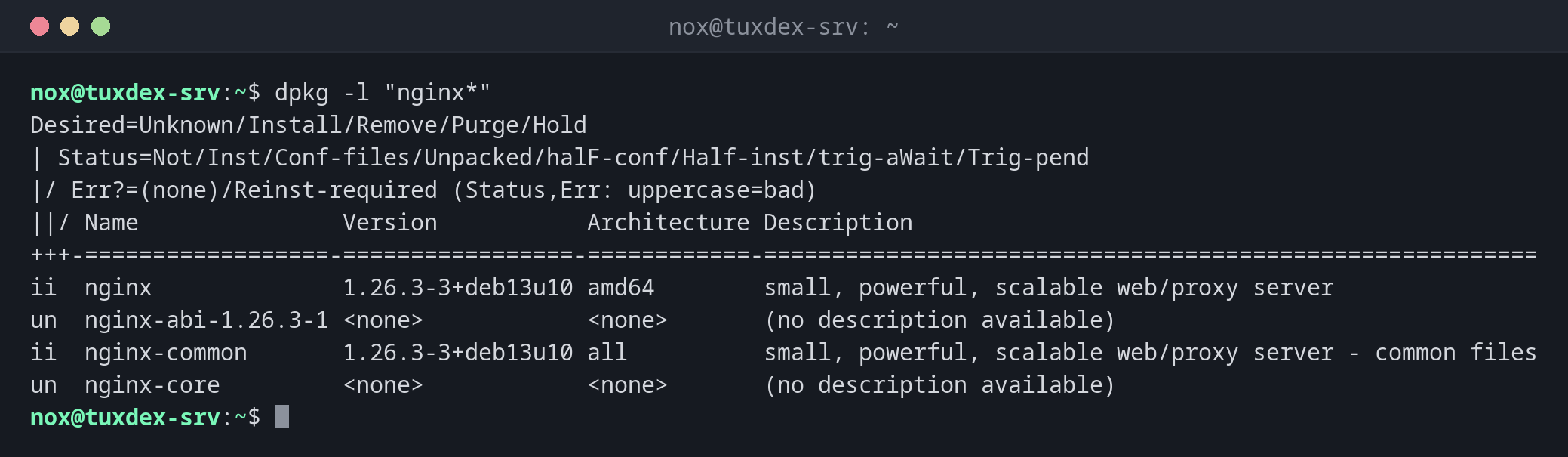
Show installed packages matching a pattern:
dpkg -l "nginx*"
Desired=Unknown/Install/Remove/Purge/Hold
| Status=Not/Inst/Conf-files/Unpacked/halF-conf/Half-inst/trig-aWait/Trig-pend
|/ Err?=(none)/Reinst-required (Status,Err: uppercase=bad)
||/ Name               Version           Architecture Description
+++-==================-=================-============-=========================================================
ii  nginx              1.26.3-3+deb13u10 amd64        small, powerful, scalable web/proxy server
un  nginx-abi-1.26.3-1 <none>            <none>       (no description available)
ii  nginx-common       1.26.3-3+deb13u10 all          small, powerful, scalable web/proxy server - common files
un  nginx-core         <none>            <none>       (no description available)
| Code | Meaning |
|---|---|
ii |
Installed and working |
rc |
Removed, but the configuration files are still there |
un |
Not installed, only known by name |
iF, iU |
Installation was interrupted, run sudo dpkg --configure -a |
Find out which package a file belongs to:
dpkg -S /usr/sbin/nginx /etc/nginx/nginx.conf
nginx: /usr/sbin/nginx
nginx-common: /etc/nginx/nginx.conf
List the files of a package:
dpkg -L htop | head -n 8
/.
/usr
/usr/bin
/usr/bin/htop
/usr/share
/usr/share/applications
/usr/share/applications/htop.desktop
/usr/share/doc
Check whether a package is installed:
dpkg -s nginx | head -n 3
Package: nginx
Status: install ok installed
Priority: optional
Install a downloaded package file:
sudo dpkg -i htop_3.4.1-5_amd64.deb
Selecting previously unselected package htop.
(Reading database ... 12414 files and directories currently installed.)
Preparing to unpack htop_3.4.1-5_amd64.deb ...
Unpacking htop (3.4.1-5) ...
dpkg: dependency problems prevent configuration of htop:
 htop depends on libncursesw6 (>= 6); however:
  Package libncursesw6 is not installed.

dpkg: error processing package htop (--install):
 dependency problems - leaving unconfigured
Errors were encountered while processing:
 htop
dpkg doesn't fetch dependencies. sudo apt install -f installs the missing ones and
finishes the installation.
When do I need it?
- To find out which package a configuration file or program comes from
- To check which version of a package is installed exactly
- After an interrupted update, to finish it with
dpkg --configure -a - To find packages in state
rcwhose configuration files are still lying around
Install .deb files with apt
sudo apt install ./htop_3.4.1-5_amd64.deb installs a package file and fetches its
dependencies from the repositories in one step. The ./ is important, otherwise
apt searches the repositories for a package with that name.
Remove leftover configuration files
dpkg -l | grep '^rc' lists removed packages whose configuration files still
exist. sudo apt purge PACKAGE removes them.
.deb files from the internet
A .deb file runs scripts as root during installation and gets no security
updates from your repositories. Only install files from sources you trust.
Distribution differences
| Debian | Ubuntu | RHEL | Arch | |
|---|---|---|---|---|
| Low-level package tool | dpkg |
dpkg |
rpm |
pacman |
| Which package owns a file? | dpkg -S |
dpkg -S |
rpm -qf |
pacman -Qo |