timedatectl
Shows and sets the time zone and time synchronization (NTP) of the system.
Syntax
timedatectl [OPTION]... [COMMAND]
Options
| Option / command | Description |
|---|---|
status |
Show time, time zone and sync state (default without a command) |
set-timezone ZONE |
Set the time zone, e.g. Europe/Berlin or UTC |
list-timezones |
List all available time zones |
set-ntp BOOL |
Turn network time synchronization on (true) or off (false) |
timesync-status |
Show details of systemd-timesyncd (server, offset, poll interval) |
set-time TIME |
Set the time by hand (only possible with NTP turned off) |
show |
Show all settings as key=value pairs, for scripts |
-p, --property=NAME |
With show: only print the property NAME |
--value |
With show: only print the value, without NAME= |
Examples
Show time, time zone and sync state:
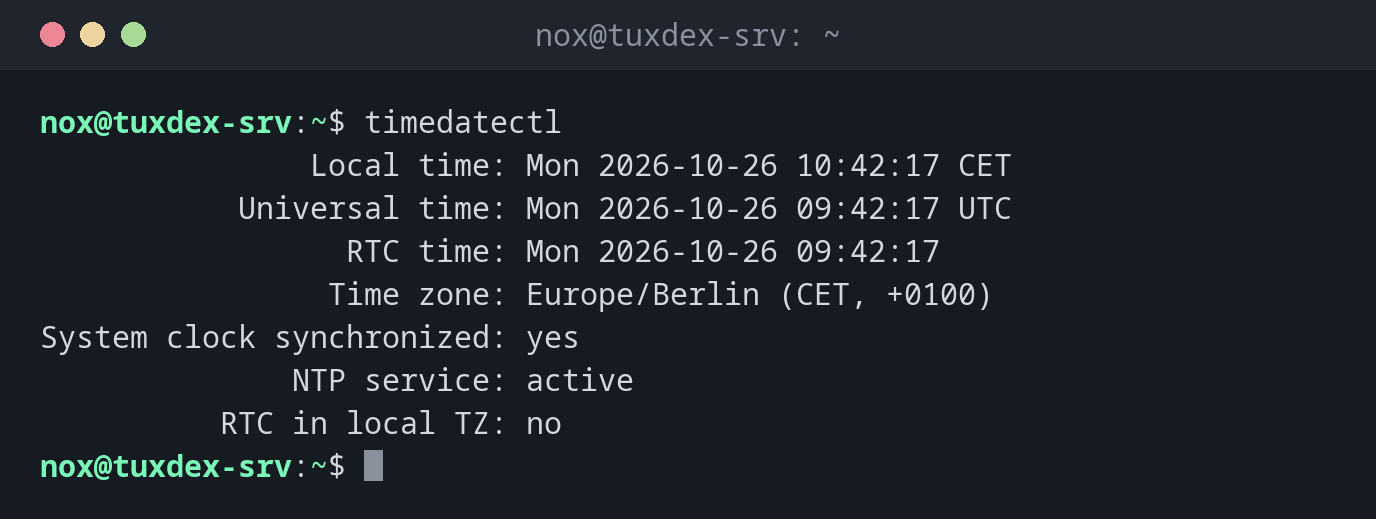
timedatectl
               Local time: Mon 2026-10-26 10:42:17 CET
           Universal time: Mon 2026-10-26 09:42:17 UTC
                 RTC time: Mon 2026-10-26 09:42:17
                Time zone: Europe/Berlin (CET, +0100)
System clock synchronized: yes
              NTP service: active
          RTC in local TZ: no
Find a time zone:
timedatectl list-timezones | grep Berlin
Europe/Berlin
Set the time zone:
sudo timedatectl set-timezone Europe/Berlin
timedatectl | grep 'Time zone'
Time zone: Europe/Berlin (CET, +0100)
Turn on time synchronization and check it:
sudo timedatectl set-ntp true
timedatectl | grep -E 'synchronized|NTP'
System clock synchronized: yes
              NTP service: active
Show details of the time synchronization:
timedatectl timesync-status
       Server: 192.0.2.123 (0.debian.pool.ntp.org)
Poll interval: 34min 8s (min: 32s; max 34min 8s)
         Leap: normal
      Version: 4
      Stratum: 2
    Reference: C0000201
    Precision: 1us (-25)
Root distance: 23.588ms (max: 5s)
       Offset: -312us
        Delay: 14.207ms
       Jitter: 1.104ms
 Packet count: 42
    Frequency: +3.512ppm
Read only the time zone (for scripts):
timedatectl show --property=Timezone --value
Europe/Berlin
When do I need it?
- After installing a server: set the right time zone and make sure NTP is active
- When log times look wrong, or entries from two servers don't line up
- When TLS connections, Kerberos or 2FA codes fail, since a wrong clock is a common cause
- To check that time synchronization works (
System clock synchronized: yes)
UTC on servers
Many admins set servers to UTC (sudo timedatectl set-timezone UTC). Logs from
servers in different locations can then be compared directly, and there are no
jumps when daylight saving time starts or ends.
System clock synchronized: no
If the clock is not synchronized, check NTP service. With inactive, turn it on
with sudo timedatectl set-ntp true. With n/a, no NTP client is installed (see
below). Also make sure the firewall allows outgoing UDP port 123.
Distribution differences
| Debian | Ubuntu | RHEL | Arch | |
|---|---|---|---|---|
| NTP client | systemd-timesyncd (own package) |
chrony from 25.10, systemd-timesyncd in 24.04 LTS |
chronyd |
systemd-timesyncd (part of systemd) |
| Active after installation | yes | yes | yes | no, turn it on with sudo timedatectl set-ntp true |
timedatectl works with all of them for time zone and set-ntp. timesync-status
only works with systemd-timesyncd. With chrony, use chronyc tracking instead.
If timedatectl shows NTP service: n/a on Debian, install the client:
sudo apt install systemd-timesyncd