systemctl
Controls systemd: starts, stops and restarts services, enables them at boot and shows their state.
Syntax
systemctl [OPTION]... COMMAND [UNIT]...
Options
| Command | Description |
|---|---|
status UNIT |
State, main PID, memory and the last log lines |
start, stop |
Start or stop a unit now |
restart |
Stop and start again |
reload |
Reload the configuration without stopping, if the service supports it |
enable, disable |
Start or don't start the unit at boot |
enable --now |
Enable and start in one step (also disable --now) |
is-active, is-enabled |
Print only the state, for scripts |
list-units |
List loaded units, e.g. with --type=service --state=running |
--failed |
Only show failed units |
cat UNIT |
Show the unit file and all overrides |
edit UNIT |
Create an override file for the unit |
daemon-reload |
Read changed unit files again |
mask, unmask |
Block a unit completely, or allow it again |
Changing commands (start, enable, edit, …) need sudo. See the
basics for units and their states.
Examples
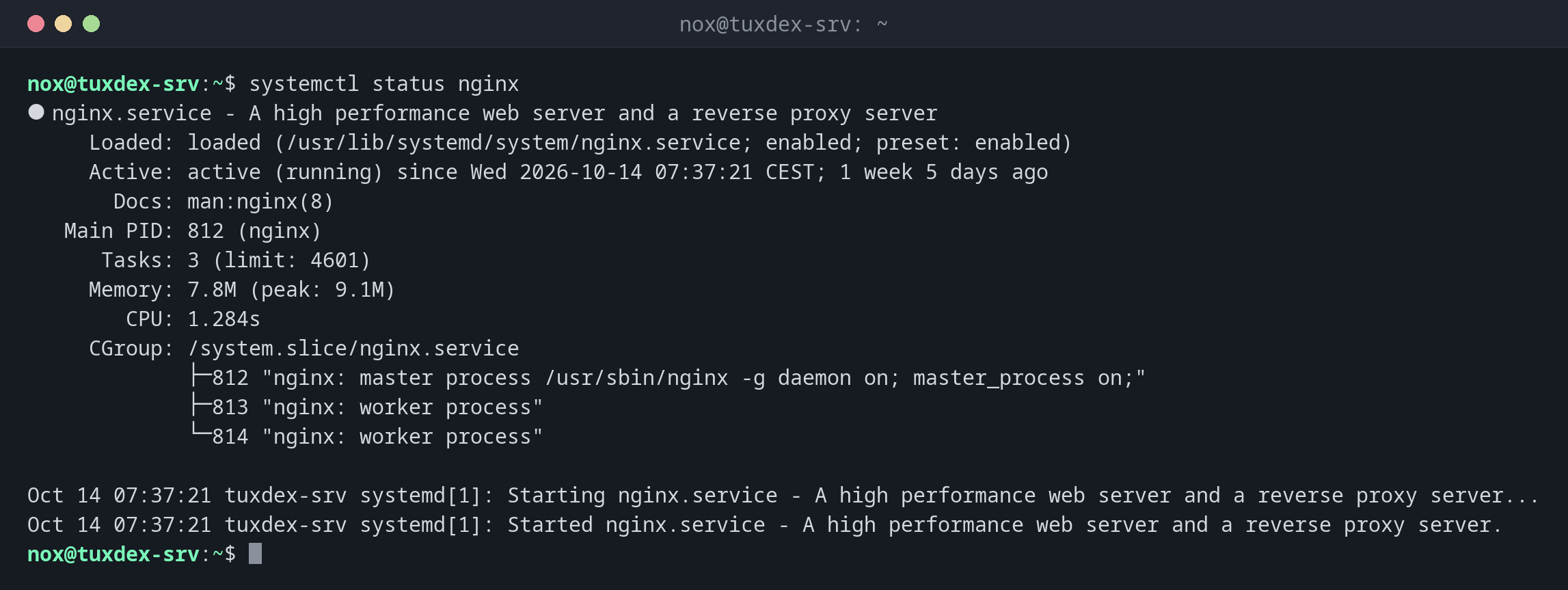
Show the state of a service:
systemctl status nginx
● nginx.service - A high performance web server and a reverse proxy server
     Loaded: loaded (/usr/lib/systemd/system/nginx.service; enabled; preset: enabled)
     Active: active (running) since Wed 2026-10-14 07:37:21 CEST; 1 week 5 days ago
       Docs: man:nginx(8)
   Main PID: 812 (nginx)
      Tasks: 3 (limit: 4601)
     Memory: 7.8M (peak: 9.1M)
        CPU: 1.284s
     CGroup: /system.slice/nginx.service
             ├─812 "nginx: master process /usr/sbin/nginx -g daemon on; master_process on;"
             ├─813 "nginx: worker process"
             └─814 "nginx: worker process"

Oct 14 07:37:21 tuxdex-srv systemd[1]: Starting nginx.service - A high performance web server and a reverse proxy server...
Oct 14 07:37:21 tuxdex-srv systemd[1]: Started nginx.service - A high performance web server and a reverse proxy server.
| Line | Meaning |
|---|---|
Loaded |
Path of the unit file, enabled at boot, and the distribution's default (preset) |
Active |
Running now, and since when |
Main PID |
The main process, the one kill and reload talk to |
CGroup |
All processes of the service |
Reload the configuration after a change:
sudo nginx -t && sudo systemctl reload nginx && systemctl is-active nginx
nginx: the configuration file /etc/nginx/nginx.conf syntax is ok
nginx: configuration file /etc/nginx/nginx.conf test is successful
active
nginx -t checks the configuration first. If it has an error, the reload doesn't
happen and the running service stays untouched.
Enable your own timer at boot and start it right away:
sudo systemctl enable --now backup.timer
Created symlink '/etc/systemd/system/timers.target.wants/backup.timer' → '/etc/systemd/system/backup.timer'.
Find failed units:
systemctl --failed
  UNIT           LOAD   ACTIVE SUB    DESCRIPTION
● backup.service loaded failed failed Nightly backup

Legend: LOAD   → Reflects whether the unit definition was properly loaded.
        ACTIVE → The high-level unit activation state, i.e. generalization of SUB.
        SUB    → The low-level unit activation state, values depend on unit type.

1 loaded units listed.
Find out why with systemctl status backup and journalctl -u backup.
List all running services:
systemctl list-units --type=service --state=running --no-legend
  cron.service               loaded active running Regular background program processing daemon
  nginx.service              loaded active running A high performance web server and a reverse proxy server
  php8.4-fpm.service         loaded active running The PHP 8.4 FastCGI Process Manager
  postgresql@17-main.service loaded active running PostgreSQL Cluster 17-main
  ssh.service                loaded active running OpenBSD Secure Shell server
  systemd-journald.service   loaded active running Journal Service
  systemd-logind.service     loaded active running User Login Management
  systemd-timesyncd.service  loaded active running Network Time Synchronization
Check in a script whether a service is enabled:
systemctl is-enabled nginx
enabled
When do I need it?
- After changing a configuration: reload or restart the service
- After installing a service: enable it at boot and start it
- When something doesn't work: is the service running, did it fail, and when?
- Before maintenance: stop services cleanly instead of killing their processes
reload before restart
reload keeps the service running and open connections alive. Use restart only
when the service doesn't support reload or a change requires a full restart.
status is truncated
In a narrow terminal, status cuts long lines. Add --no-pager -l to see them in
full, for example to copy an error message.
enable doesn't start, start doesn't enable
A service that you only start is off again after the next reboot. A service that
you only enable runs only after the next reboot. enable --now does both.
Stopping ssh over SSH
sudo systemctl stop ssh doesn't end your current session, but nobody can log in
afterwards, including you after a disconnect. Use restart and keep a second session
open while you test.
Distribution differences
| Debian | Ubuntu | RHEL | Arch | |
|---|---|---|---|---|
| Service starts and is enabled when its package is installed | yes | yes | no | no |
| SSH server service | ssh |
ssh |
sshd |
sshd |
| Apache web server service | apache2 |
apache2 |
httpd |
httpd |
Related commands
kill · ps · journalctl