jobs
Lists the commands that you started in the background or paused in the current shell.
Syntax
jobs [OPTION]... [%JOB]...
Options
| Option | Description |
|---|---|
-l |
Also show the PID |
-p |
Only show the PIDs |
-r |
Only running jobs |
-s |
Only stopped jobs |
You address a job with % and its number: %1, %2. %+ (or just %) is the current
job, %- the previous one.
Examples
Show all jobs of this shell:
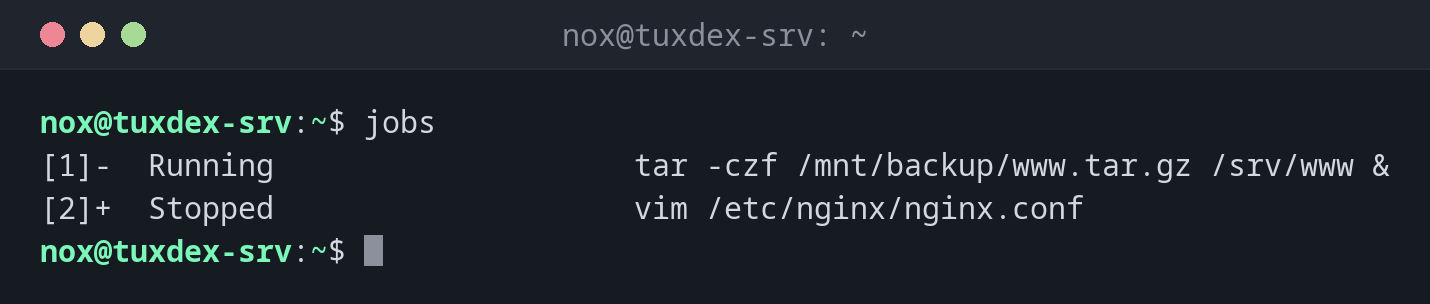
jobs
[1]-  Running                    tar -czf /mnt/backup/www.tar.gz /srv/www &
[2]+  Stopped                    vim /etc/nginx/nginx.conf
| Part | Meaning |
|---|---|
[1] |
Job number, used with %1 |
+ / - |
Current and previous job: fg and bg without a number use + |
Running |
Runs in the background |
Stopped |
Paused, for example with Ctrl+Z |
Show the PIDs as well:
jobs -l
[1]- 4520 Running                    tar -czf /mnt/backup/www.tar.gz /srv/www &
[2]+ 4533 Stopped                    vim /etc/nginx/nginx.conf
Only show stopped jobs:
jobs -s
[2]+ Stopped vim /etc/nginx/nginx.conf
Start a command in the background:
tar -czf /mnt/backup/www.tar.gz /srv/www &
[1] 4520
The shell prints the job number and the PID.
Check later whether it is finished:
jobs
[1]-  Done                       tar -czf /mnt/backup/www.tar.gz /srv/www
[2]+  Stopped                    vim /etc/nginx/nginx.conf
Done is shown once. After that, the job disappears from the list.
When do I need it?
- To find out what is still running in the background of your shell
- Before logging out, to see whether a job would be ended
- To get the job number for
fg,bgorkill %1
kill with job numbers
In the shell, kill also understands job numbers: kill %1 ends job 1
without looking up the PID.
Only this shell
jobs only knows the jobs of the current shell. A second SSH session, or a new
terminal, has its own list. To see all processes, use ps.
Logging out ends jobs
When you close the shell or the SSH connection drops, the running jobs usually get
the HUP signal and end. Use nohup for long jobs, or a terminal
multiplexer like tmux.