shutdown
Shuts down or reboots the system, right away or at a set time, and warns all logged in users beforehand.
Syntax
shutdown [OPTION]... [TIME] [MESSAGE]
TIME is now, +MINUTES (e.g. +5) or a time of day like 22:00. Without a time,
shutdown waits one minute.
Options
| Option | Description |
|---|---|
-r |
Reboot instead of shutting down |
-h, -P |
Shut down and power off (default) |
-c |
Cancel a scheduled shutdown |
--show |
Show a scheduled shutdown |
-k |
Only send the warning, don't shut down |
Examples
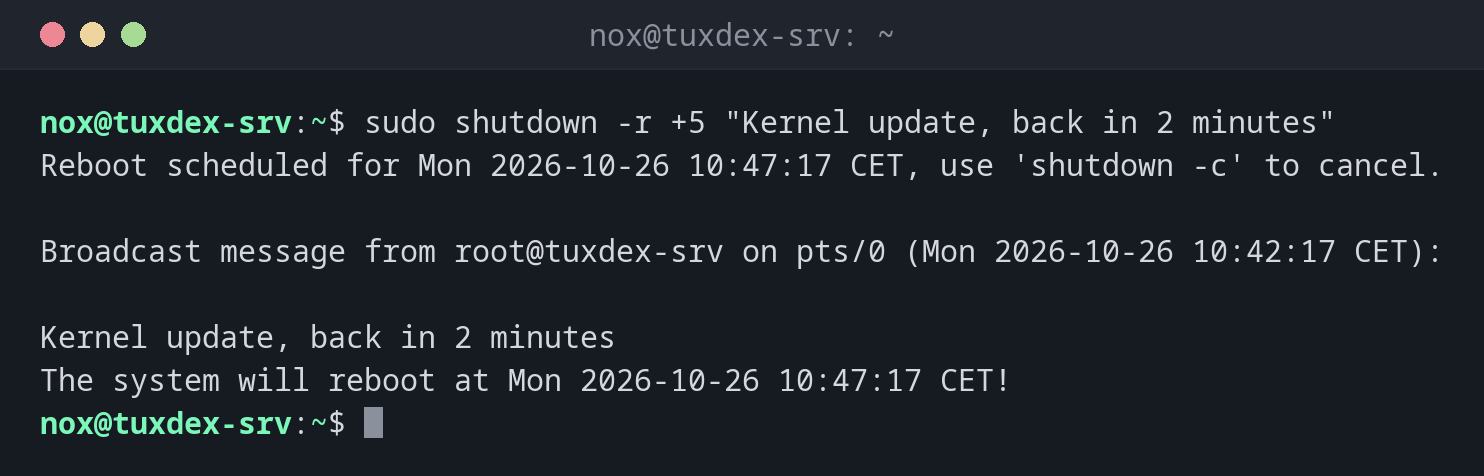
Reboot in 5 minutes and warn the users:
sudo shutdown -r +5 "Kernel update, back in 2 minutes"
Reboot scheduled for Mon 2026-10-26 10:47:17 CET, use 'shutdown -c' to cancel.

Broadcast message from root@tuxdex-srv on pts/0 (Mon 2026-10-26 10:42:17 CET):

Kernel update, back in 2 minutes
The system will reboot at Mon 2026-10-26 10:47:17 CET!
Every logged in user sees the message in their terminal. From 5 minutes before the time, new logins are no longer possible.
Check whether a shutdown is scheduled:
shutdown --show
Reboot scheduled for Mon 2026-10-26 10:47:17 CET, use 'shutdown -c' to cancel.
Cancel the scheduled reboot:
sudo shutdown -c
shutdown --show
Broadcast message from root@tuxdex-srv on pts/0 (Mon 2026-10-26 10:43:02 CET):

System shutdown has been cancelled

No scheduled shutdown.
Shut down tonight at 22:00:
sudo shutdown -h 22:00 "Hardware maintenance"
Shutdown scheduled for Mon 2026-10-26 22:00:00 CET, use 'shutdown -c' to cancel.

Broadcast message from root@tuxdex-srv on pts/0 (Mon 2026-10-26 10:42:17 CET):

Hardware maintenance
The system will power off at Mon 2026-10-26 22:00:00 CET!
When do I need it?
- To reboot after a kernel update and give the users time to save their work
- To schedule maintenance outside office hours
- To shut down a server before hardware work or a move
Check who is logged in
Before a reboot, look with w or
loginctl whether anybody else is working on the server.
Is the server coming back?
After a reboot, the server must start everything on its own. Check beforehand with
systemctl is-enabled that all important services are enabled.
The wrong server
shutdown -h now in the wrong SSH session switches off a production server, and
you may need physical access or the hosting console to start it again. Check the
host name in the prompt before you press Enter.