git add
Marks changes for the next commit by putting them into the staging area.
Syntax
git add [OPTIONS] PATH...
Options
| Option | Description |
|---|---|
PATH |
File or directory; . means everything in the current directory and below |
-A, --all |
All changes in the whole repository, including deleted files |
-u, --update |
Only files Git already tracks, no new files |
-p, --patch |
Choose part by part which changes to add |
-n, --dry-run |
Only show what would be added |
-f, --force |
Also add a file excluded by .gitignore |
Examples
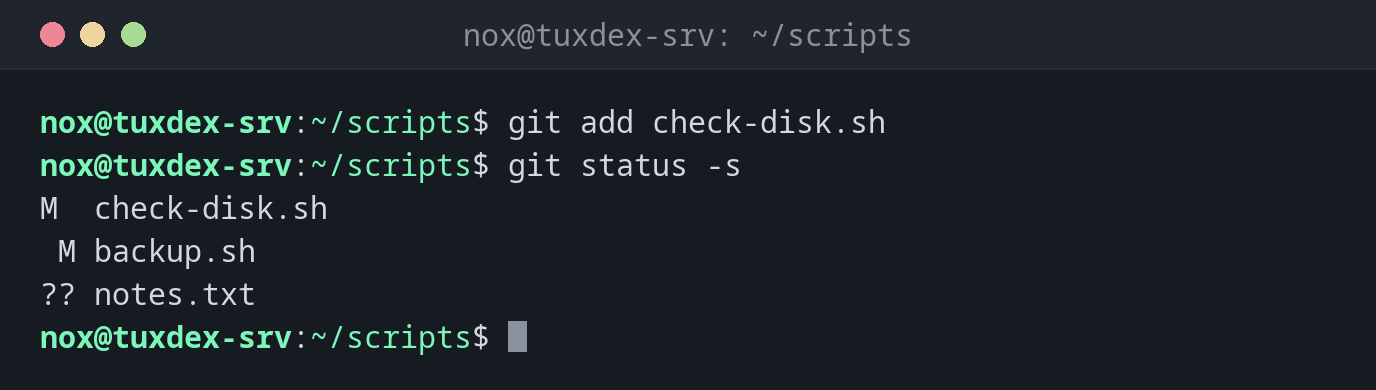
Add one file and check the result:
git add check-disk.sh
git status -s
M  check-disk.sh
 M backup.sh
?? notes.txt
check-disk.sh is now staged (left column), backup.sh is changed but not staged.
See what git add . would do:
git add -n .
add 'backup.sh'
add 'notes.txt'
Add only part of the changes:
git add -p backup.sh
diff --git a/backup.sh b/backup.sh
index 8791eb2..895c5d1 100644
--- a/backup.sh
+++ b/backup.sh
@@ -1,3 +1,4 @@
 #!/usr/bin/env bash
 set -euo pipefail
 nice -n 10 tar --zstd -cf "/mnt/backup/www-$(date +%F).tar.zst" -C /srv www
+echo "backup done"
(1/1) Stage this hunk [y,n,q,a,d,e,p,?]? y
Add all changes to tracked files:
git add -u
git status -s
M  backup.sh
M  check-disk.sh
?? notes.txt
When do I need it?
- Before every commit, to decide exactly what goes into it
- To split several changes in one file into separate commits with
-p - To add new files to the repository
Clean commits with -p
git add -p shows every changed block and asks y (add) or n (skip). That way a
commit only contains what belongs together.
Check before git add .
git add . also adds new files you might not want in the repository, such as log
files or a .env with passwords. Look at git status first, or use -n.