find
Searches a directory tree for files by name, type, size, age, owner or permissions, and can run commands on the results.
Syntax
find [DIRECTORY]... [TEST]... [ACTION]
Options
| Test / action | Description |
|---|---|
-name PATTERN |
Name matches PATTERN (e.g. "*.log"), case-sensitive |
-iname PATTERN |
Like -name, but ignores upper and lower case |
-type TYPE |
f file, d directory, l symbolic link |
-size N |
Size: +500M larger than 500 MB, -10k smaller than 10 KB |
-mtime N |
Last changed N days ago: +14 older than 14 days, -1 within the last day |
-mmin N |
Like -mtime, but in minutes |
-user NAME |
Belongs to user NAME |
-perm MODE |
Has the permissions MODE (e.g. -perm 777) |
-empty |
Empty file or directory |
-maxdepth N |
Search at most N levels deep |
-xdev |
Stay on the current file system (don't descend into /proc, mounts, …) |
-exec CMD {} + |
Run CMD with the found files as arguments |
-delete |
Delete the found files |
Examples
Find files by name:
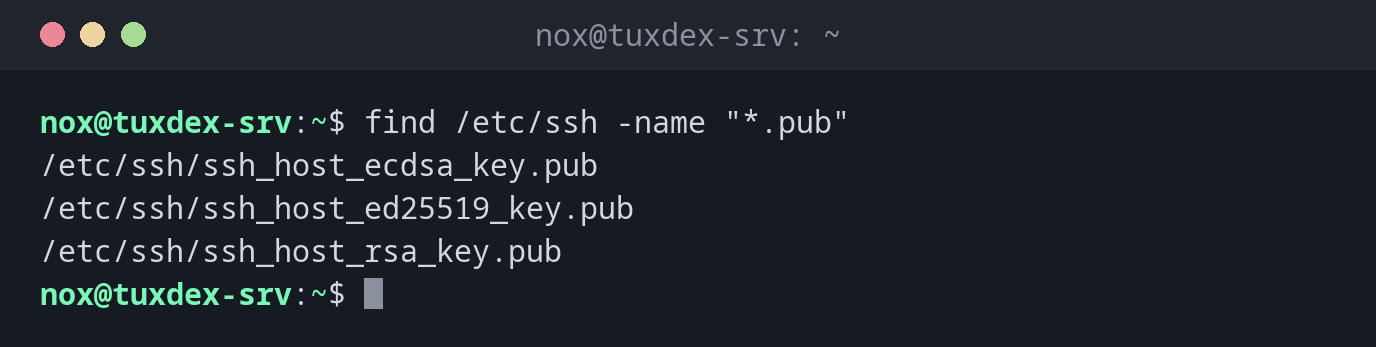
find /etc/ssh -name "*.pub"
/etc/ssh/ssh_host_ecdsa_key.pub
/etc/ssh/ssh_host_ed25519_key.pub
/etc/ssh/ssh_host_rsa_key.pub
Find only directories:
find ~ -type d
/home/nox
/home/nox/backup
/home/nox/scripts
Find large files when the disk is full:
find / -xdev -type f -size +500M 2>/dev/null
/home/nox/backup/db-2026-10-20.sql.gz
Find old files:
find /var/log/apt -name "*.gz" -mtime +14
/var/log/apt/history.log.1.gz
/var/log/apt/term.log.1.gz
Find configuration files changed in the last hour:
sudo find /etc -type f -mmin -60
/etc/nginx/sites-available/example.com
Run a command on all matches:
find ~/scripts -name "*.sh" -exec chmod 750 {} +
ls -l ~/scripts
total 8
-rwxr-x--- 1 nox nox 1200 Oct 22 18:40 backup.sh
-rwxr-x--- 1 nox nox  640 Oct 22 18:35 cleanup.sh
When do I need it?
- When the disk is full: find large files with
-size - To clean up old logs, backups or temporary files (
-mtimetogether with-delete) - To find out which configuration files were changed recently (
-mmin,-newer) - To fix owner or permissions for many files at once (
-exec chown/-exec chmod) - When you know a file name, but not where the file is
Hide \"Permission denied\" messages
As a normal user, find / prints an error for every directory you are not allowed
to read. Add 2>/dev/null to hide these messages, or run the search with sudo.
Always quote patterns
Write -name "*.log", not -name *.log. Without quotes, the shell expands *.log
in the current directory before find even starts, and the search gives wrong results.
Test before you delete
Run the search without -delete first and check the list. Put -delete always at
the end: find . -delete -name "*.tmp" deletes everything in the current
directory, because -delete runs before the name test.
find /tmp -type f -name "*.tmp" -mtime +7          # check the list first
find /tmp -type f -name "*.tmp" -mtime +7 -delete  # then delete