tree
Shows the contents of a directory and all its subdirectories as a tree.
Syntax
tree [OPTION]... [DIRECTORY]...
Options
| Option | Description |
|---|---|
-L LEVEL |
Only show LEVEL levels deep |
-d |
Show directories only |
-a |
Also show hidden files |
-I PATTERN |
Hide files matching PATTERN (e.g. '*.gz') |
-P PATTERN |
Only show files matching PATTERN |
-f |
Show the full path of every entry |
-h |
Show file sizes in K, M, G |
-p |
Show permissions like ls -l |
-u |
Show the owner |
--dirsfirst |
Show directories before files |
--du |
Show the total size of each directory |
Examples
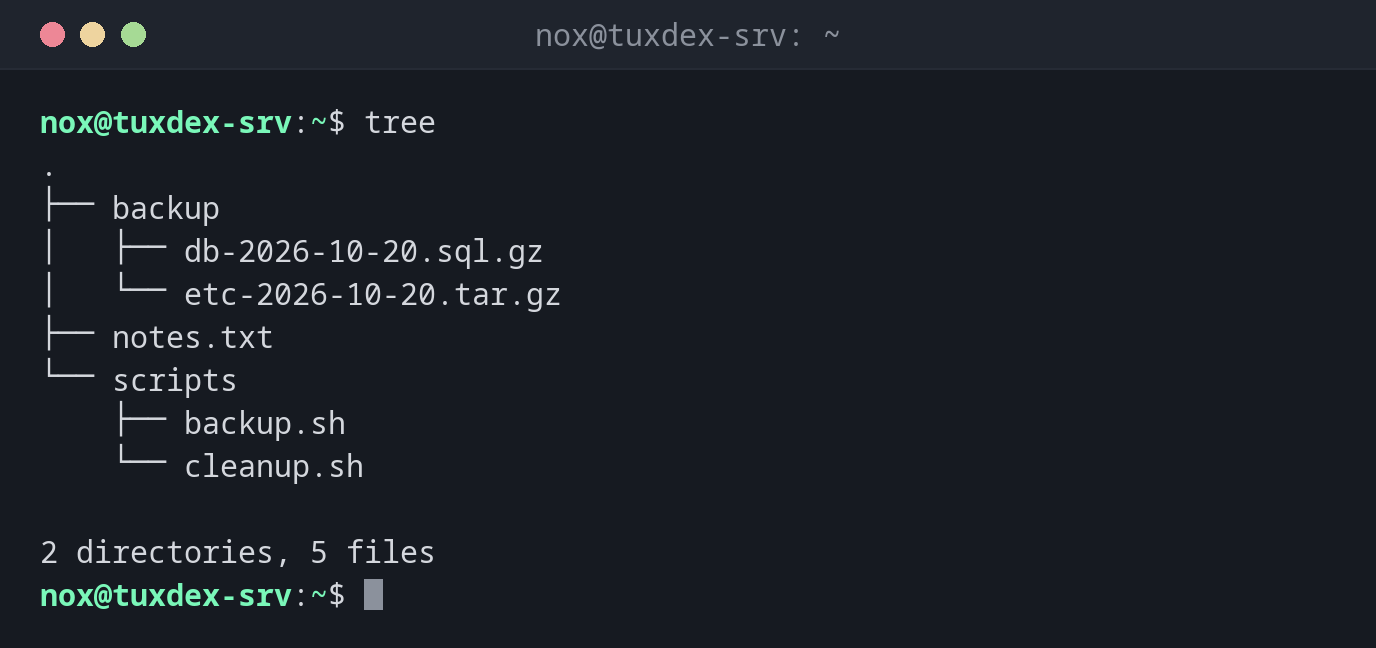
Show the current directory as a tree:
tree
.
├── backup
│   ├── db-2026-10-20.sql.gz
│   └── etc-2026-10-20.tar.gz
├── notes.txt
└── scripts
    ├── backup.sh
    └── cleanup.sh

2 directories, 5 files
Only show the first level:
tree -L 1
.
├── backup
├── notes.txt
└── scripts

2 directories, 1 file
Show directories only:
tree -d
.
├── backup
└── scripts

2 directories
Also show hidden files:
tree -a -L 1
.
├── .bash_history
├── .bash_logout
├── .bashrc
├── .profile
├── backup
├── notes.txt
└── scripts

2 directories, 5 files
Hide certain files:
tree -I '*.gz'
.
├── backup
├── notes.txt
└── scripts
    ├── backup.sh
    └── cleanup.sh

2 directories, 3 files
When do I need it?
- To get an overview of an unknown directory, for example a web project in
/var/wwwor a configuration directory like/etc/nginx - To document the structure of a project or a backup in a README or a ticket
- To quickly check whether a deployment put all files in the right place
Always limit the depth on large directories
tree / or tree /usr prints hundreds of thousands of lines. Use -L 2 or -d to
keep the output readable.
Not installed by default
tree is not installed by default on most distributions. The package is called
tree everywhere, see the table below.
Distribution differences
| Debian | Ubuntu | RHEL | Arch | |
|---|---|---|---|---|
| Install | sudo apt install tree |
sudo apt install tree |
sudo dnf install tree |
sudo pacman -S tree |