logger
Writes your own messages into the system log. The easiest way to let scripts and cron jobs leave traces in the journal.
Syntax
logger [OPTION]... [MESSAGE]
Options
| Option | Description |
|---|---|
-t TAG |
Name under which the message appears, e.g. backup |
-p PRIORITY |
Priority, e.g. user.err or local0.info |
-i |
Add the process ID |
-f FILE |
Log the content of a file |
-s |
Also print the message on standard error |
Examples
Write a message with a tag:
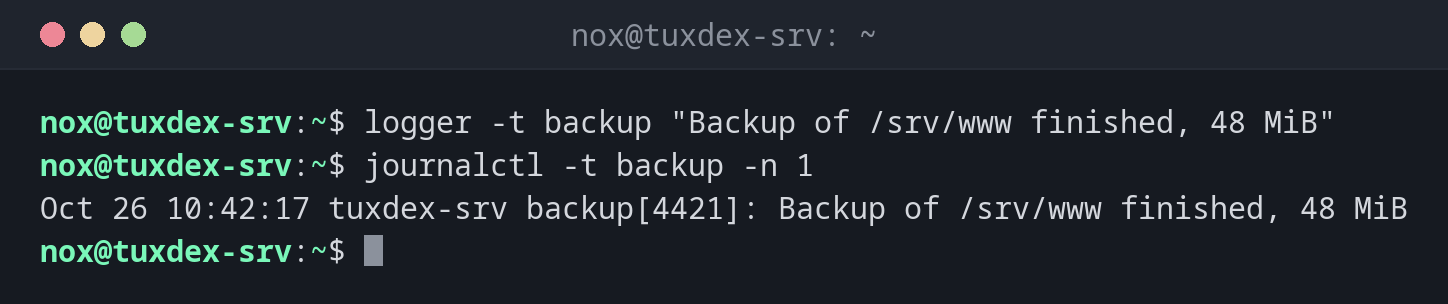
logger -t backup "Backup of /srv/www finished, 48 MiB"
journalctl -t backup -n 1
Oct 26 10:42:17 tuxdex-srv backup[4421]: Backup of /srv/www finished, 48 MiB
Log an error:
logger -t backup -p user.err "Backup failed: no space left on /mnt/backup"
journalctl -t backup -p err -n 1
Oct 26 10:42:19 tuxdex-srv backup[4425]: Backup failed: no space left on /mnt/backup
Log the content of a file:
logger -t deploy -f /srv/app/deploy.log
journalctl -t deploy -n 2
Oct 26 10:42:21 tuxdex-srv deploy[4433]: Deployment of version 2.4.1 started
Oct 26 10:42:21 tuxdex-srv deploy[4433]: Deployment of version 2.4.1 finished
Every line of the file becomes its own entry in the journal.
When do I need it?
- In scripts and cron jobs, to log start, end and errors
- To mark a point in time in the log, e.g. before a test
- To test whether logging works at all
Find your messages again
Use a fixed tag per script. journalctl -t backup then shows exactly the messages of
your backup script, no matter how much else is going on.
Errors with priority err
logger -p user.err marks a message as an error. Monitoring and journalctl -p err
find it then, together with the errors of all services.